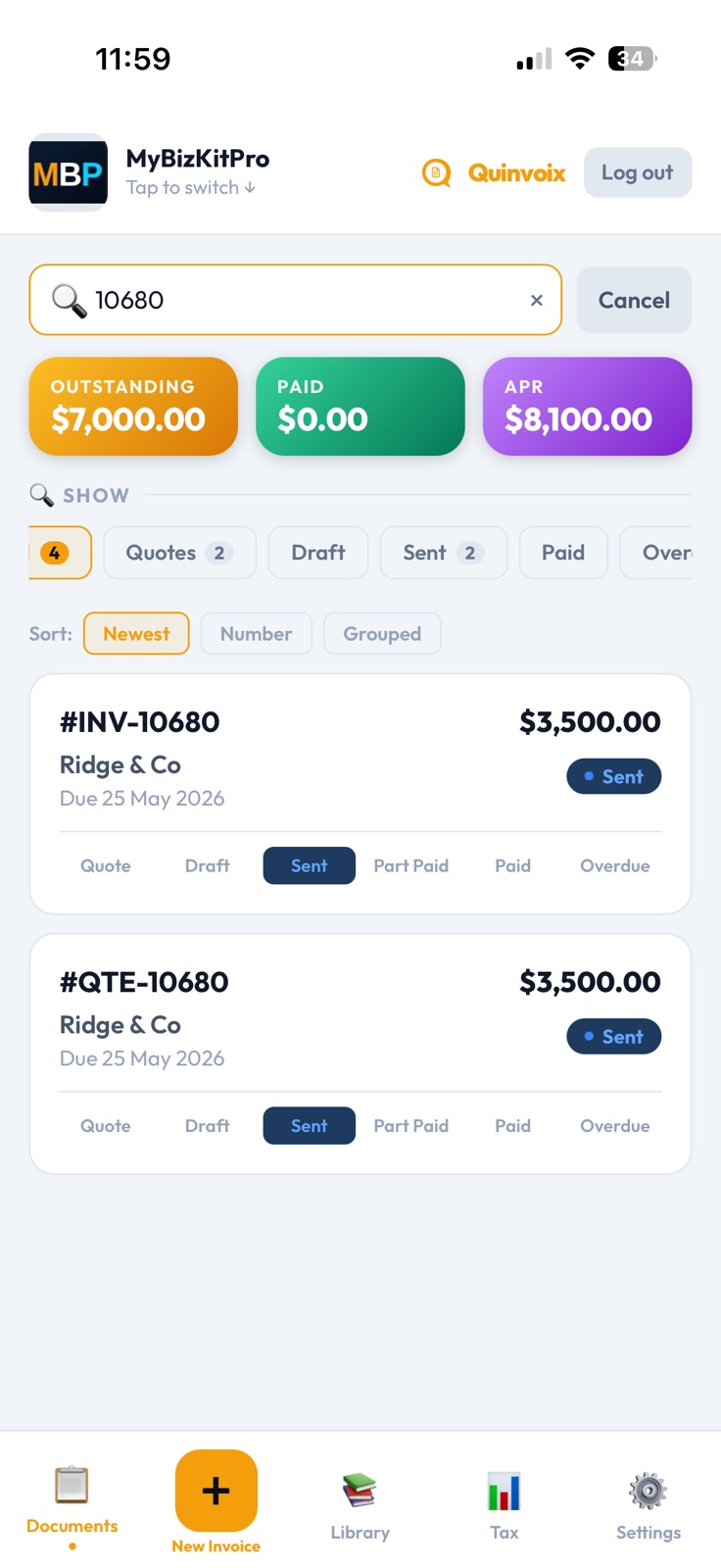
Open the builder
Tap the orange + button in the bottom tab bar of your home screen. Every quote and invoice starts from here.
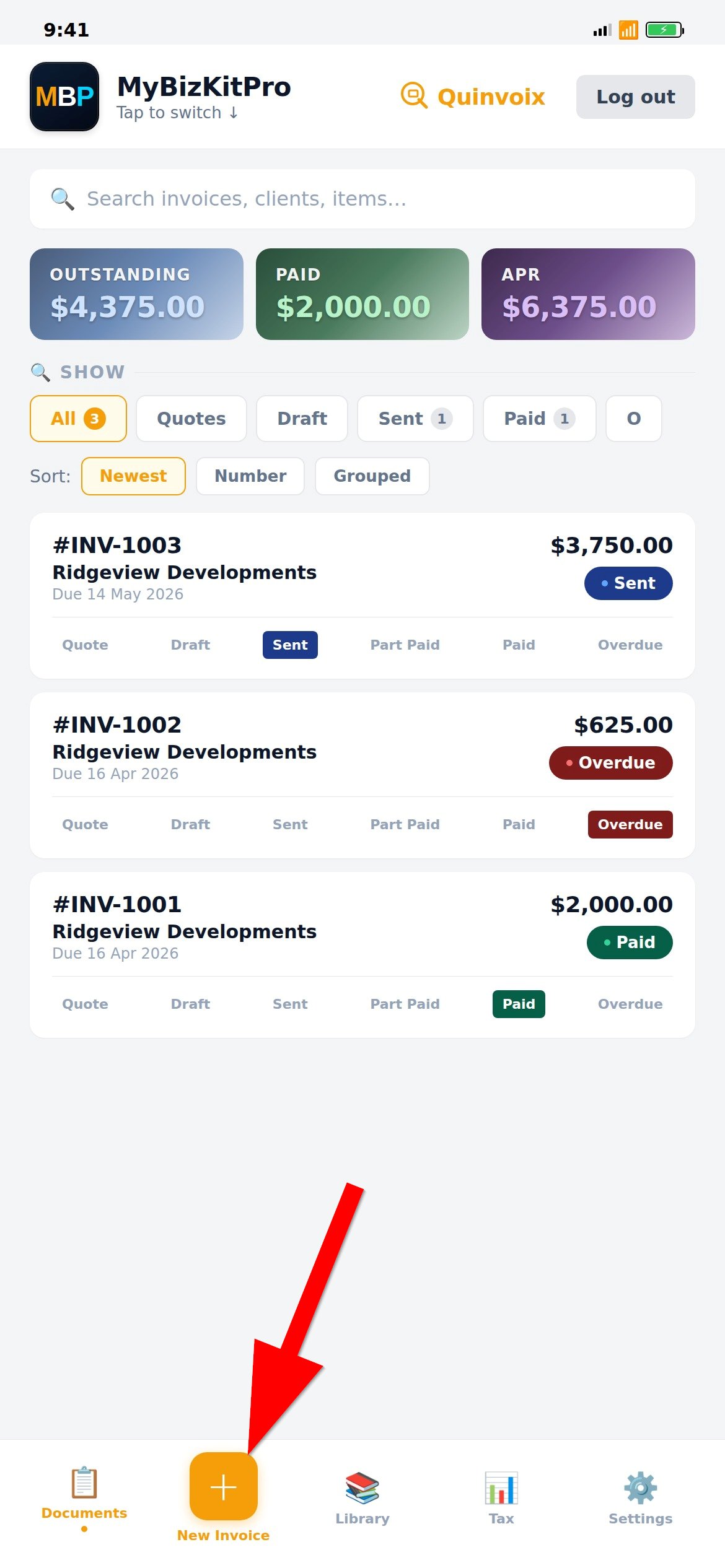
Choose Quote
Pick Quote / Estimate to send a price before work begins. (If you're billing for work already completed, choose Invoice instead — same flow, slightly different label.)
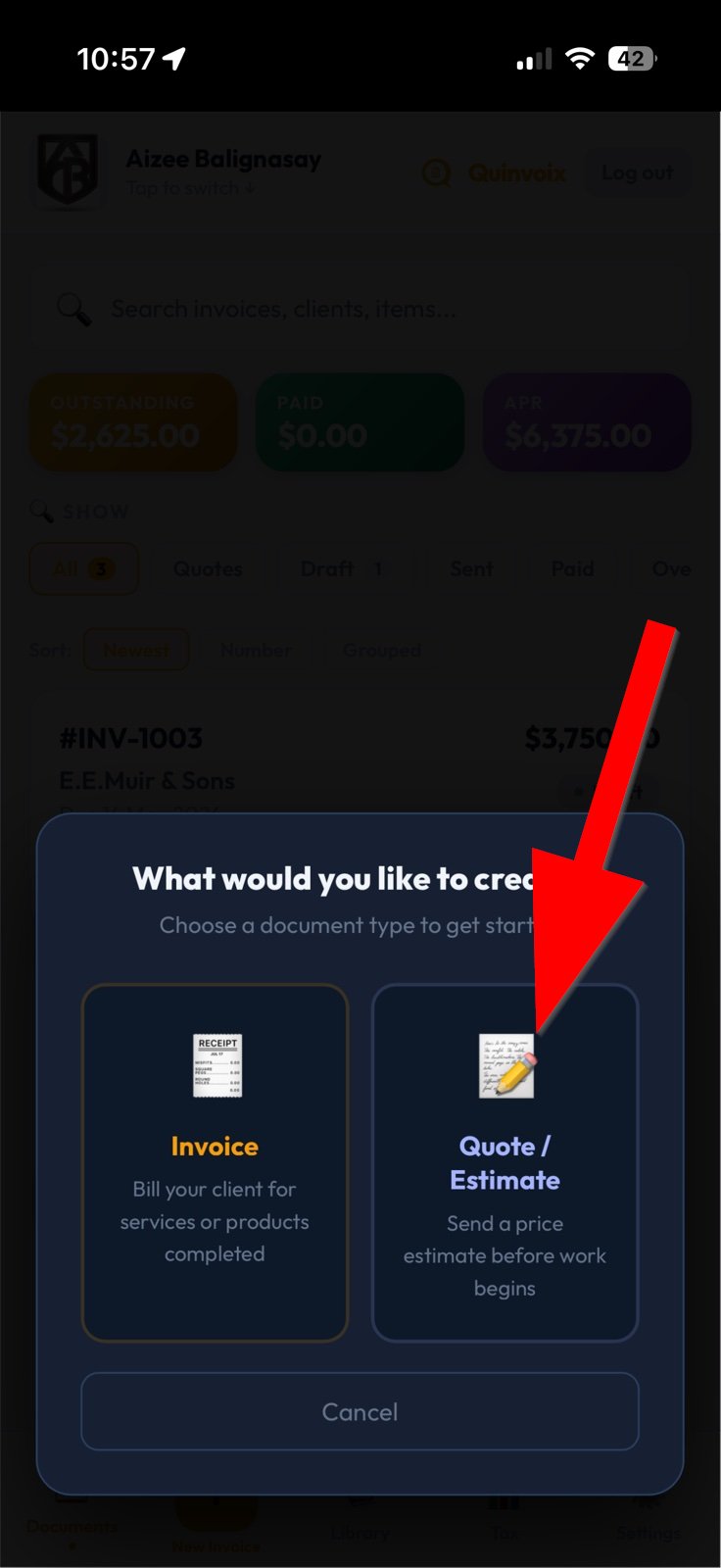
Add your client
Start typing the client's name. Quinvoix auto-completes from anyone you've billed before — no retyping, ever. Brand new client? Just keep typing the full details and we'll save them for next time. Or tap Client List to browse all your saved contacts.
Add your items
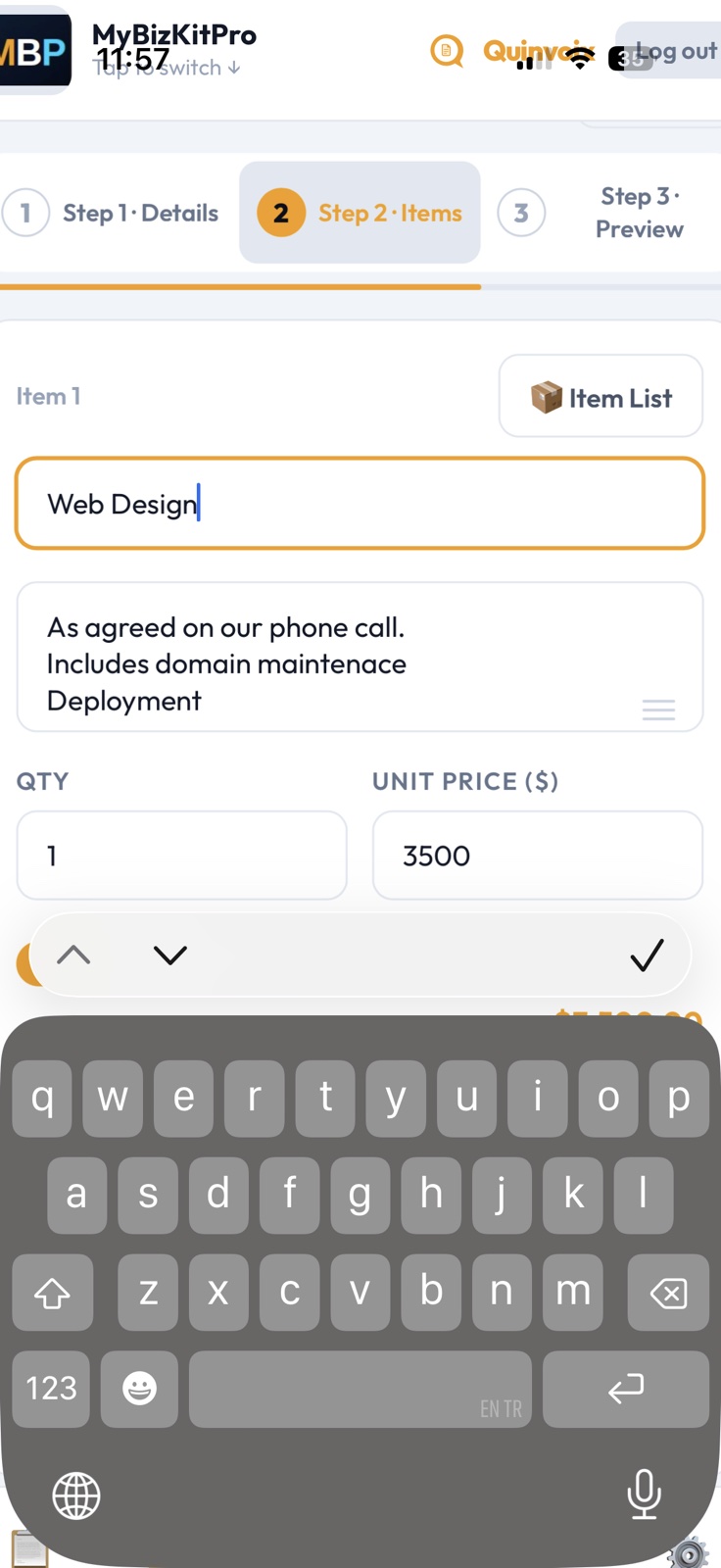
Type what you're charging for: a description, quantity, and unit price. GST (or your local tax) calculates automatically based on your business settings. Tap Item List to pick from products and services you've already saved.
Preview and create
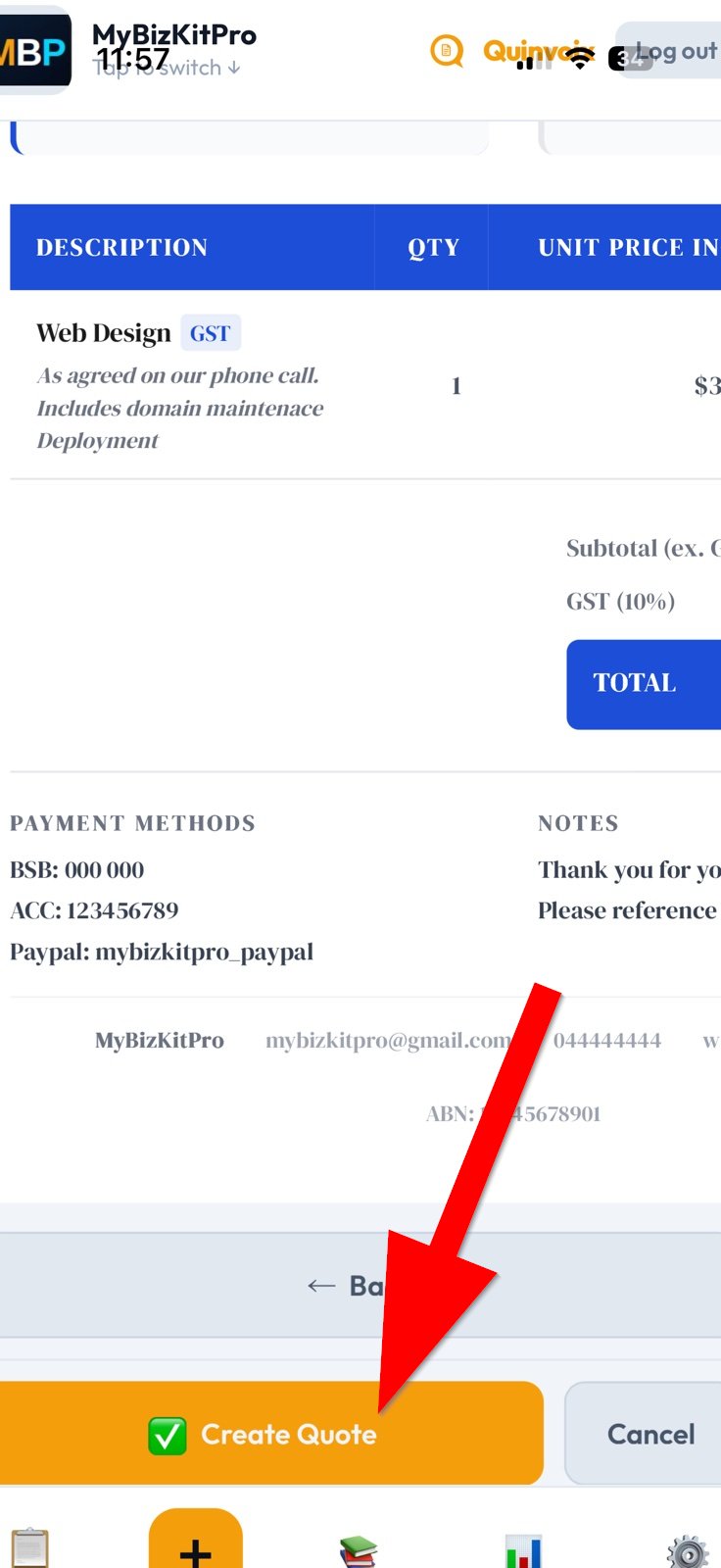
Check exactly how your quote will look before saving it. On desktop you'll see the full document; on mobile, scroll left and right to inspect the whole layout. When you're happy, tap Create Quote to save it.
Convert to invoice
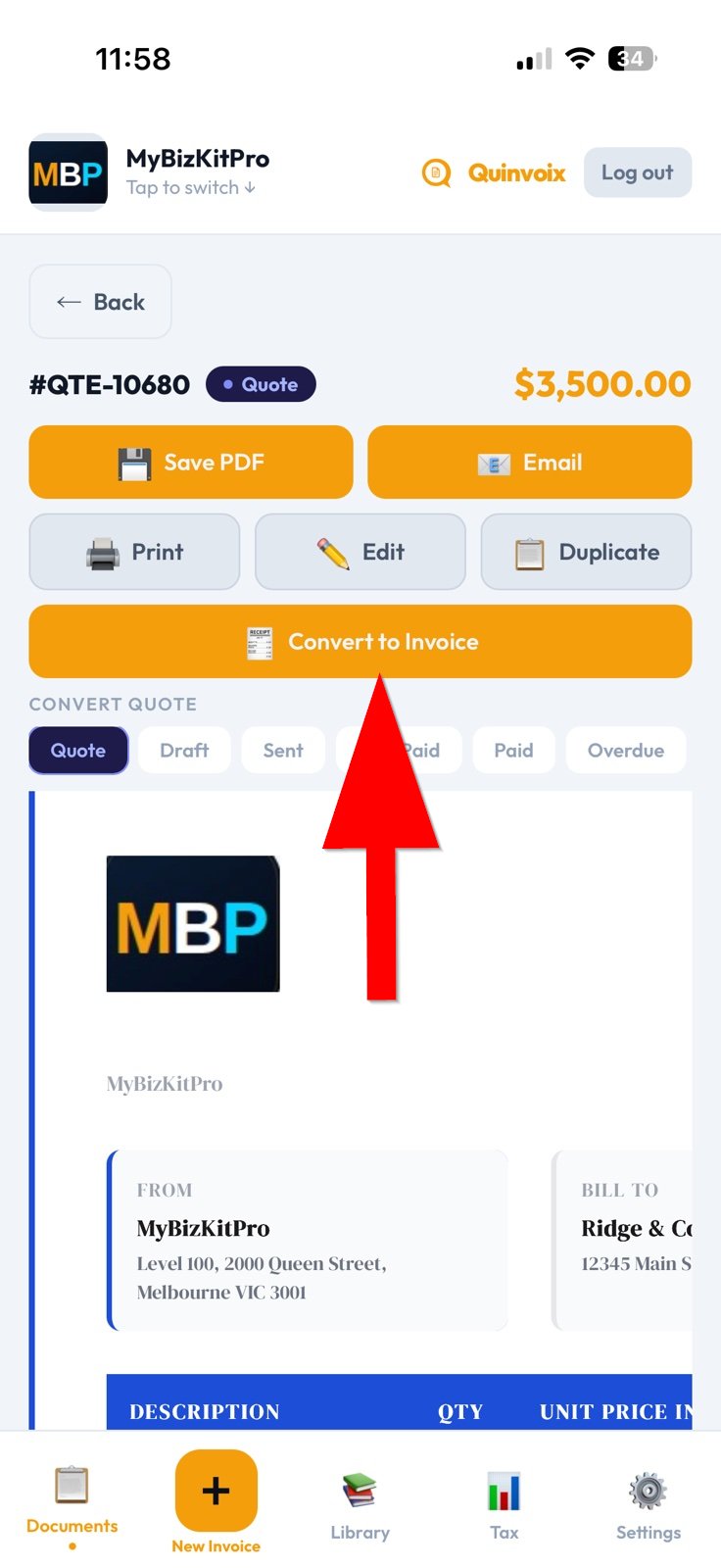
Client said yes? Open the quote from your Documents tab and tap Convert to Invoice. The full invoice is generated instantly — no retyping, no copy-paste, no mistakes. Your original quote stays in your records as a paper trail.
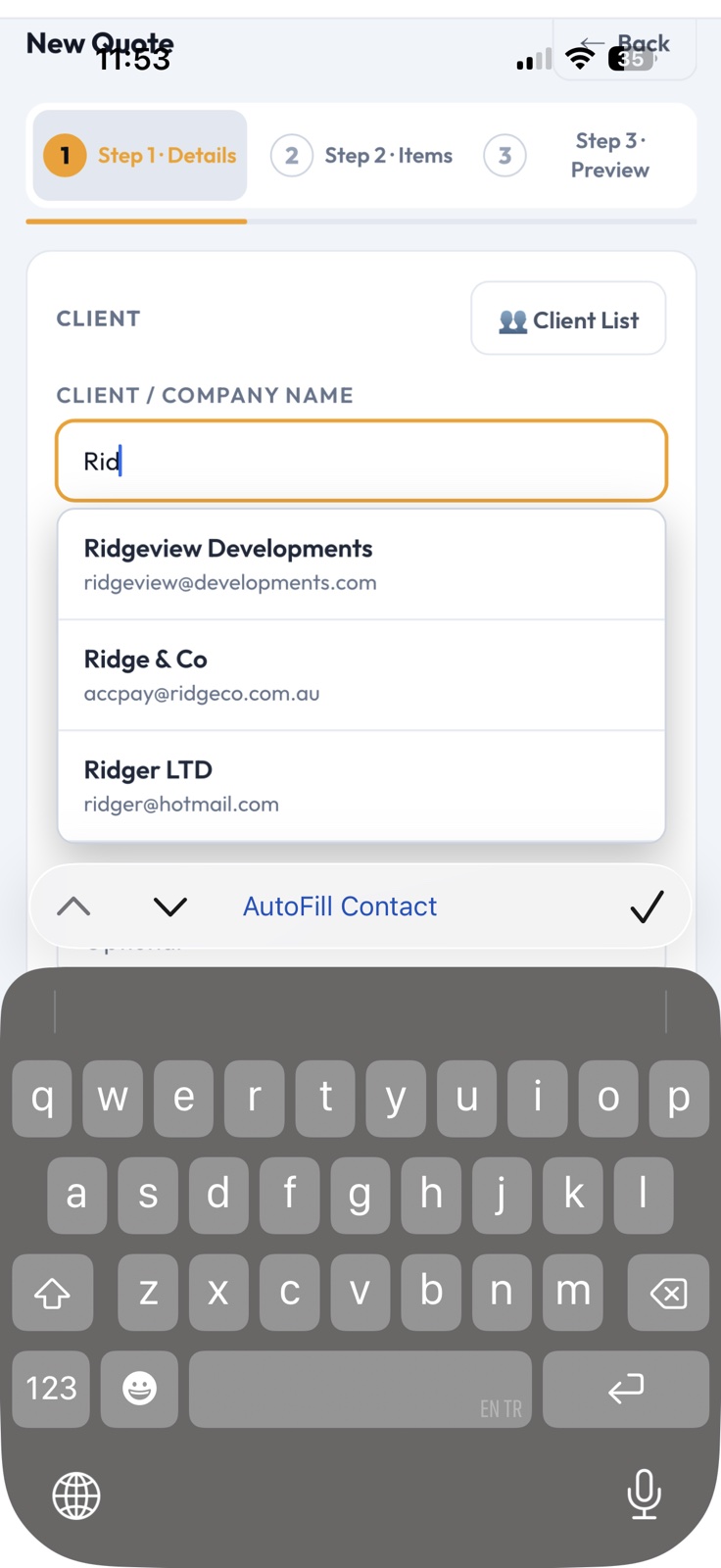
One number, two documents
After converting, you'll see both #QTE-10680 (the original quote) and #INV-10680 (the matching invoice) in your Documents view. They share the same number for easy tracking. Keep the quote for your records, or delete it if you're done with it — your call.