Step-by-Step Guide

Master Warrantyx in 2 minutes

Five short walkthroughs covering everything from your first scan to email forwarding and tax exports. Built for busy people who'd rather see than read.

1

Create your account

Takes 30 seconds. We'll send a confirmation email — click the link, and you're in.

Step 1
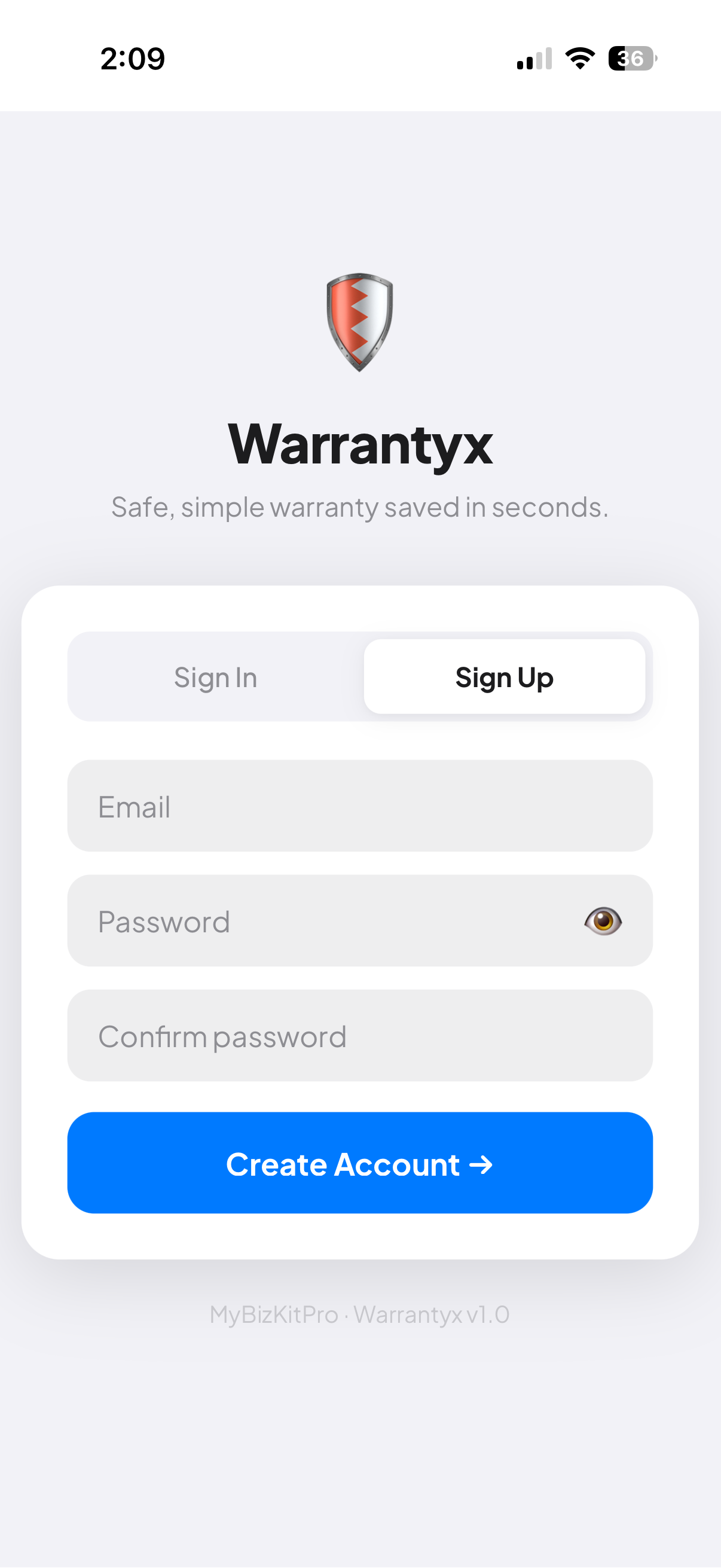
Sign Up

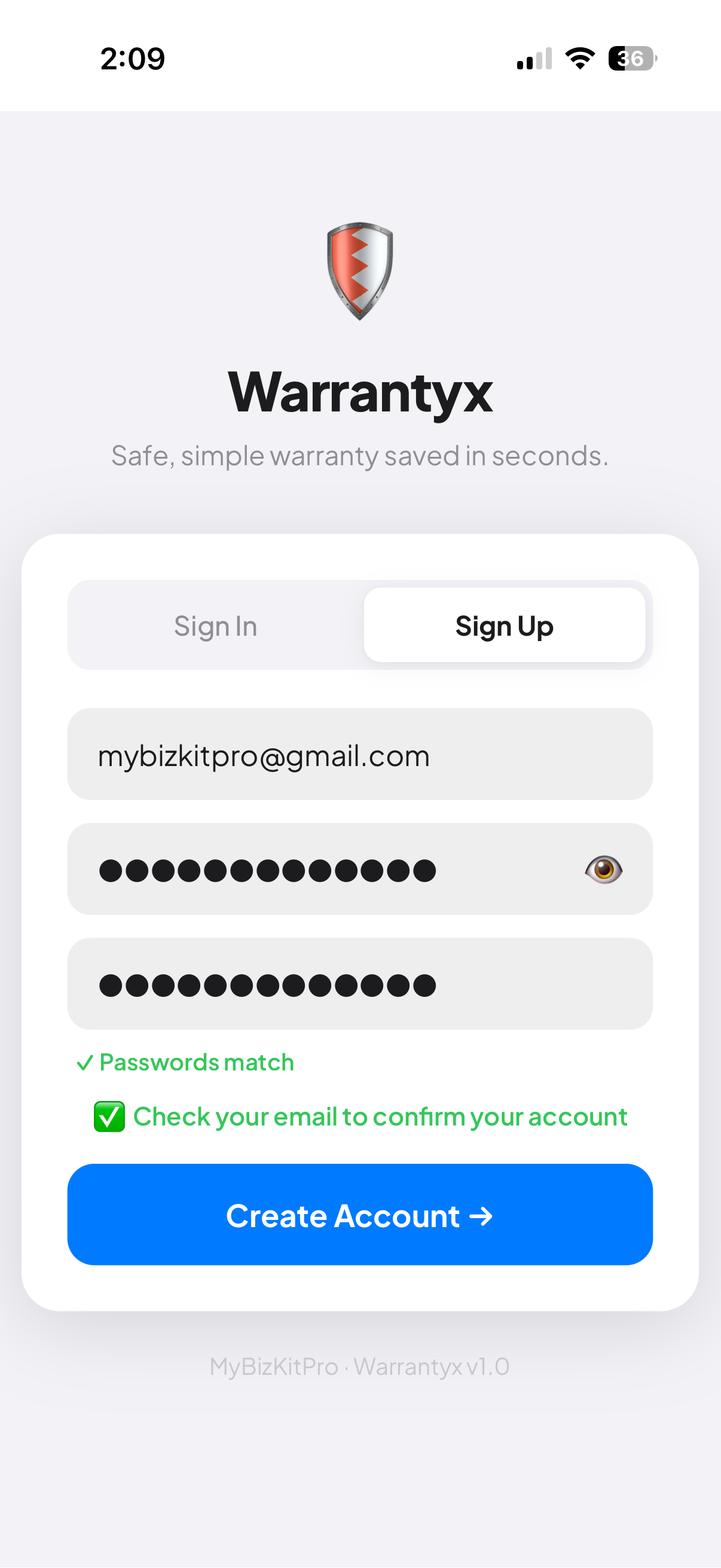
Open warrantyx.mybizkitpro.com and tap Sign Up. Email and password — that's it.

Warrantyx signup screen with Email and Password fields
Step 2

Confirm your email

Check your inbox for a confirmation link. The app shows a green check while you wait.

Email confirmation screen
Step 3

You're in

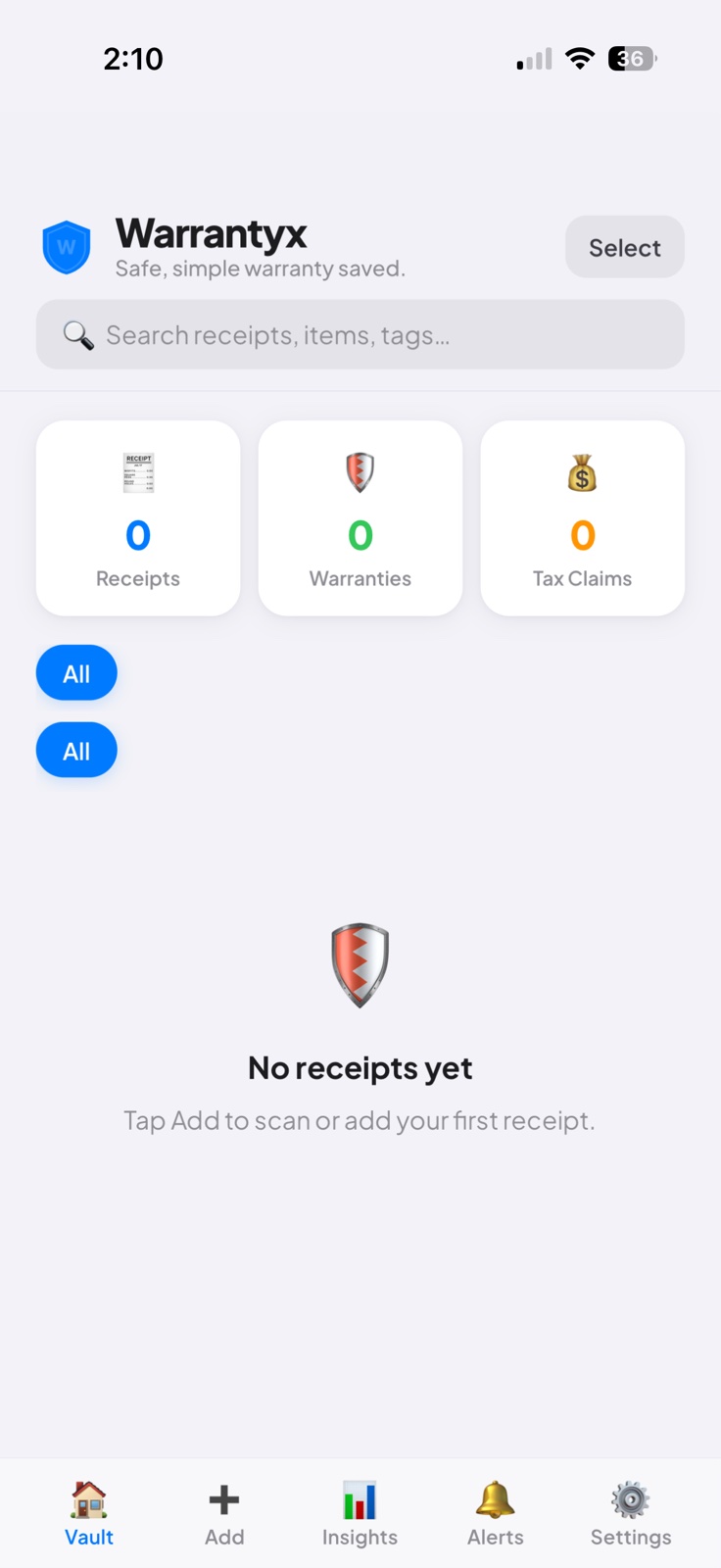
Land in your empty vault. Receipts, warranties, and tax claims will fill in as you scan.

Empty vault home screen
Tip: No confirmation email? Check Spam/Junk and mark it Not Spam — future emails will land in your inbox.
2

Scan your first receipt

Snap it with your camera, upload a file, or do a multi-page scan. AI extracts merchant, total, date, and warranty automatically.

Step 1

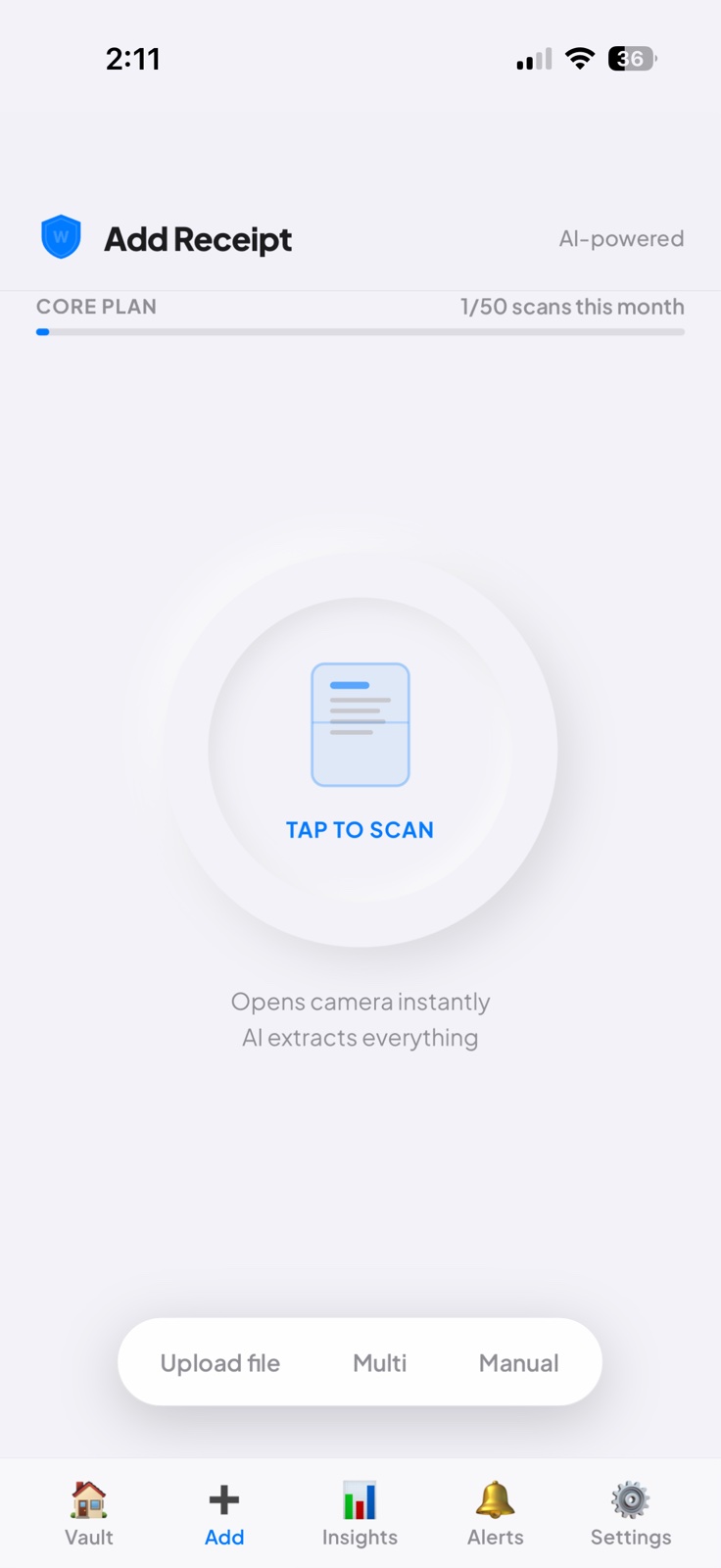
Tap Add

Tap the big circle to launch the camera, or pick Upload File / Multi / Manual underneath.

Add Receipt screen with Tap to Scan and upload options
Step 2

Frame the receipt

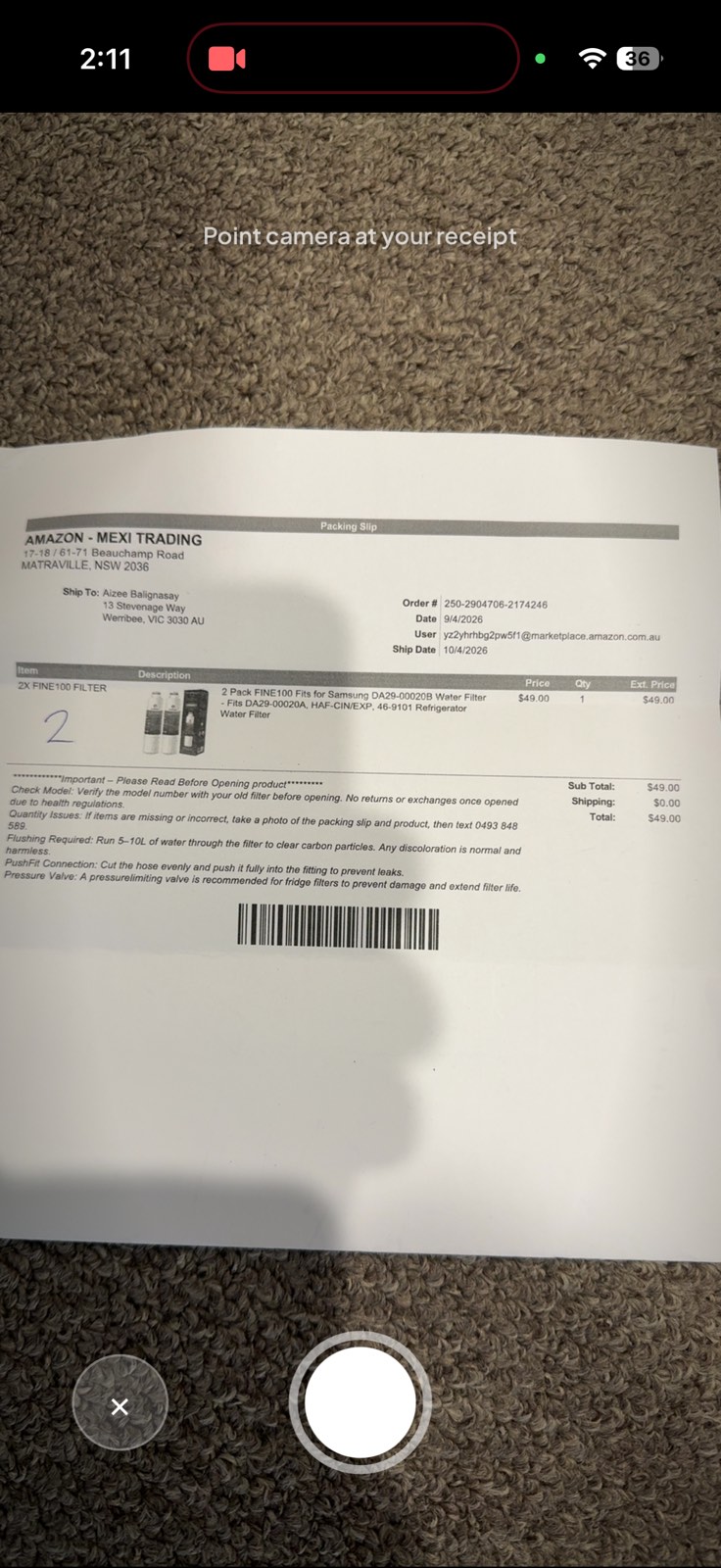
Lay it flat, point your camera, tap the shutter. No cropping needed — AI handles it.

Camera viewfinder pointed at a receipt
Step 3

Review extracted data

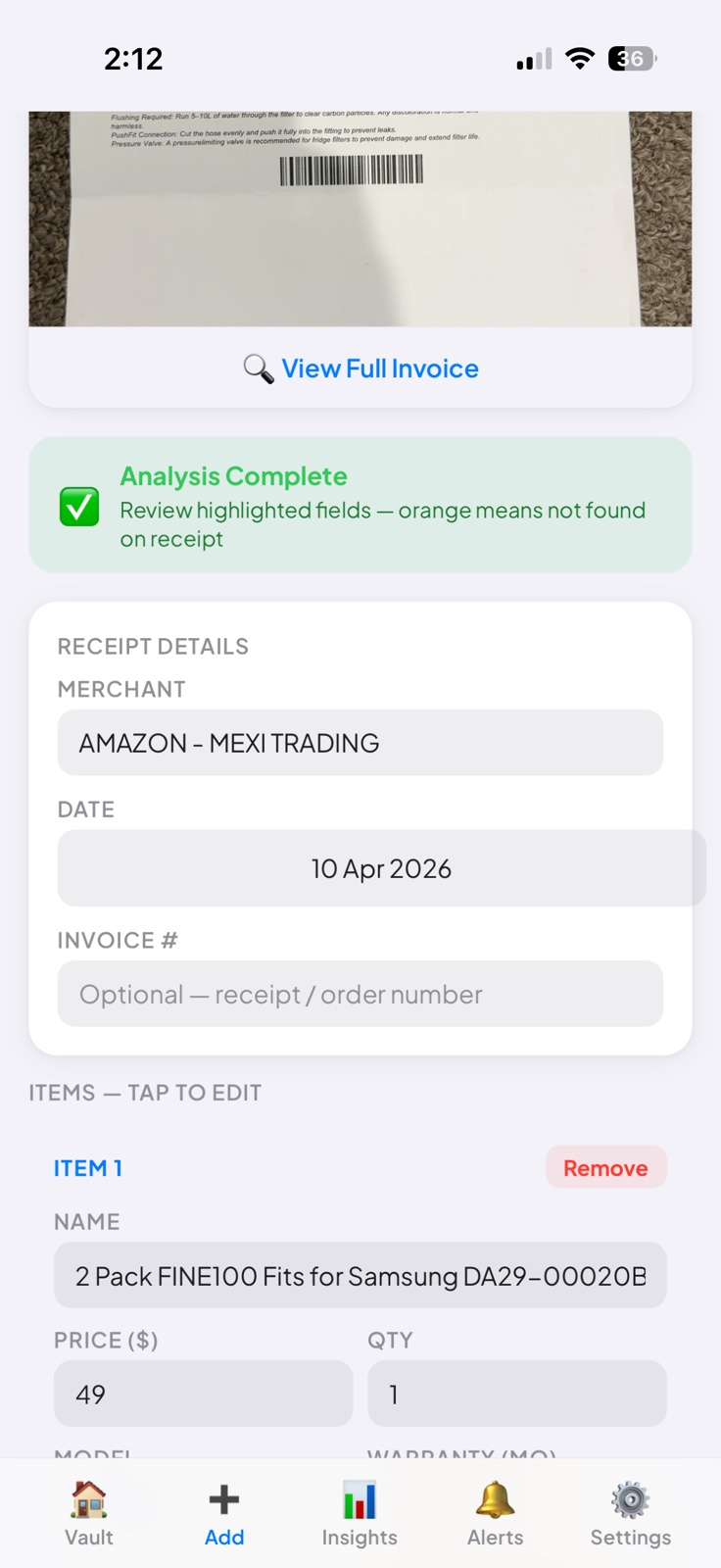
AI fills in everything. Confirm the details look right and save — it's now in your vault.

Scan review showing extracted merchant, date, items
Tip: PDF invoices work too. Use Upload File instead of the camera and AI extracts data from the PDF the same way.
3

Tax tracking that survives EOFY

Toggle Tax Deductible on any receipt. At tax time, export everything as a CSV or PDF report — itemised, GST-broken-down, ready for your accountant.

Step 1

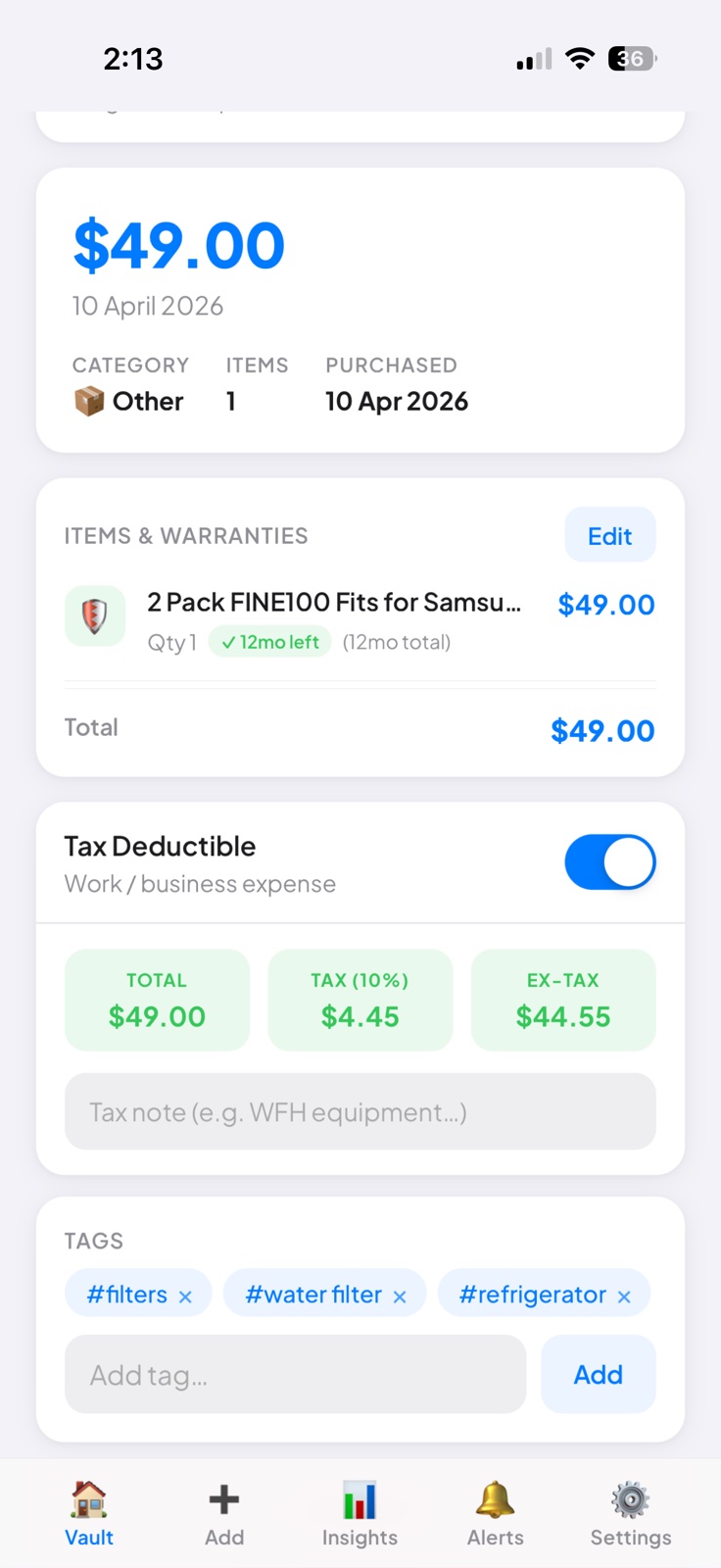
Toggle on the receipt

Open any receipt, flip the Tax Deductible switch. GST and ex-tax amounts calculate instantly.

Receipt detail with Tax Deductible toggle on
Step 2

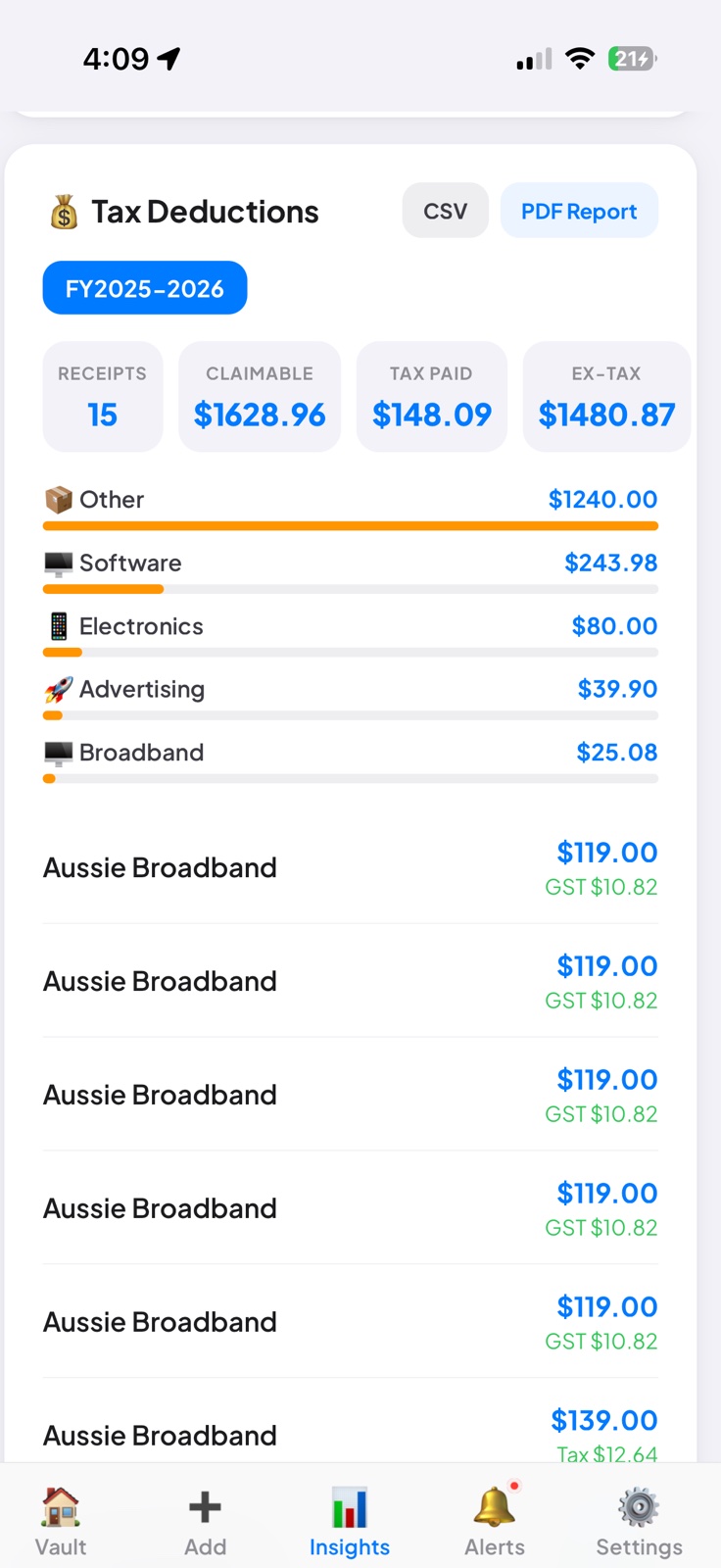
See your year-to-date totals

Insights tab shows tax claimable, GST paid, and a category breakdown for the financial year.

Tax Deductions insights with totals and category breakdown
Step 3

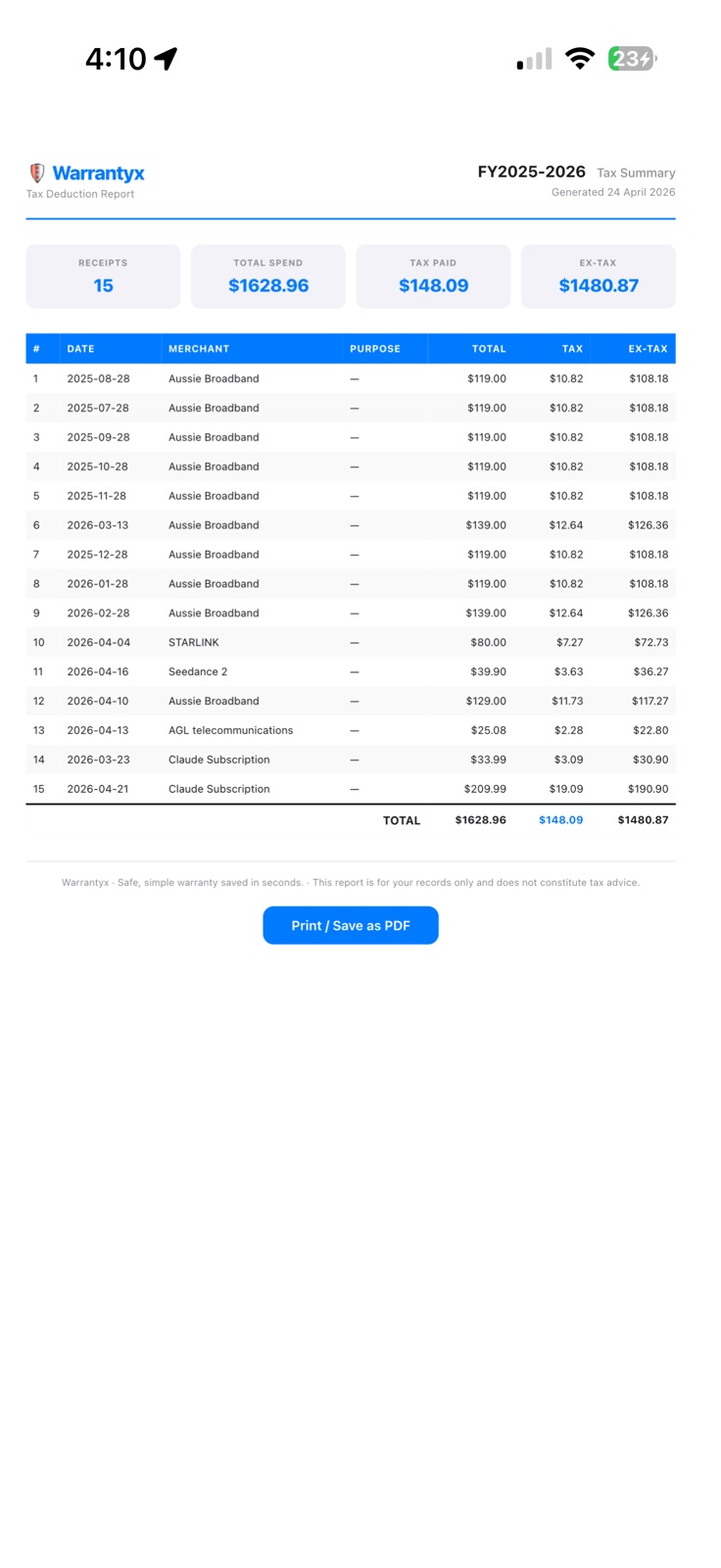
Export for your accountant

Tap PDF Report or CSV. Get an itemised summary with every receipt, GST, and ex-tax amount.

Exported PDF tax summary report
Tip: The tax note field on each receipt (e.g. "WFH equipment") flows straight through to the PDF report's Purpose column. Future-you will thank present-you.
4

Set up email forwarding

Save digital receipts without lifting a finger. Forward any receipt email to your unique address — Warrantyx scans the attachment and adds it to your vault automatically.

Step 1

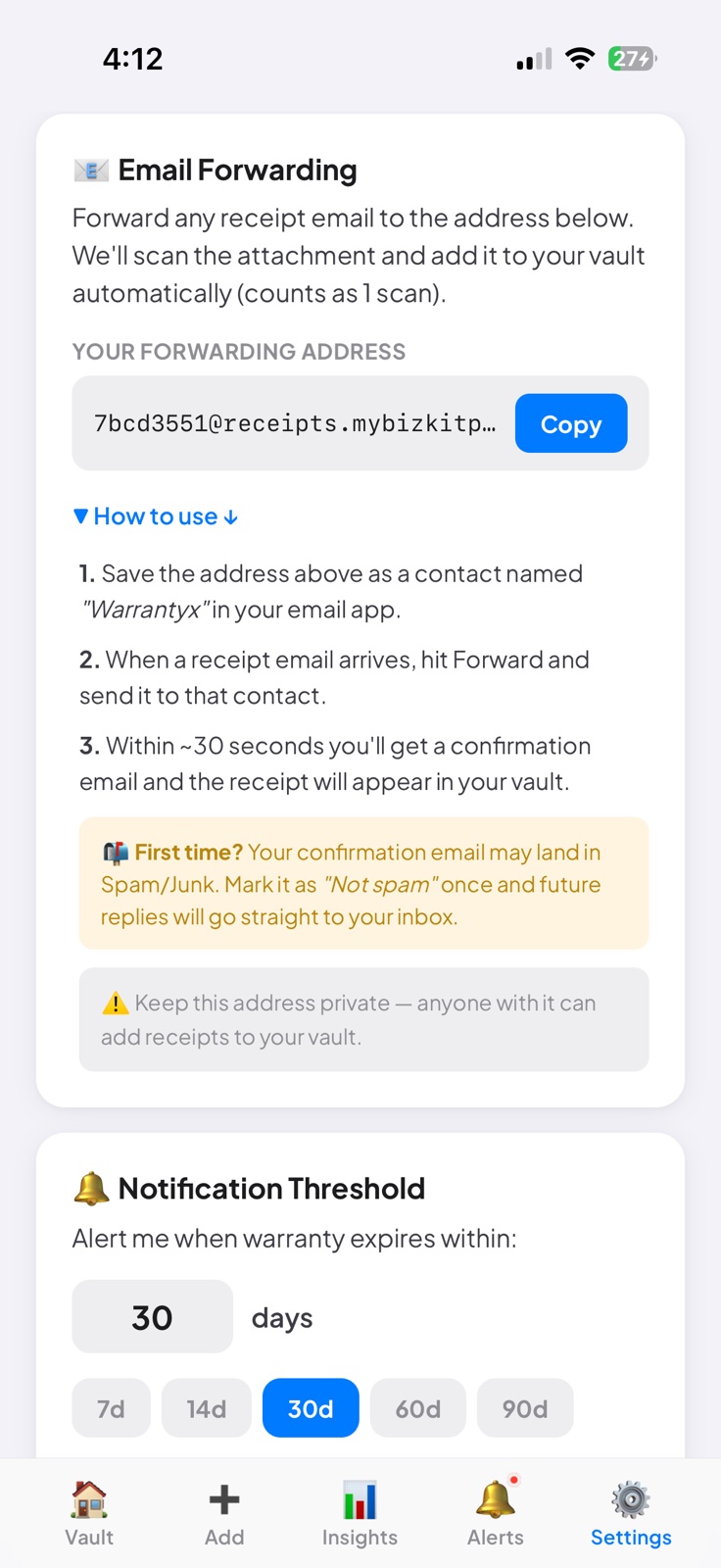
Get your forwarding address

Settings → Email Forwarding. Tap Copy. Save it as a contact named "Warrantyx" in your email app.

Settings showing personal forwarding address
Step 2

Forward a receipt

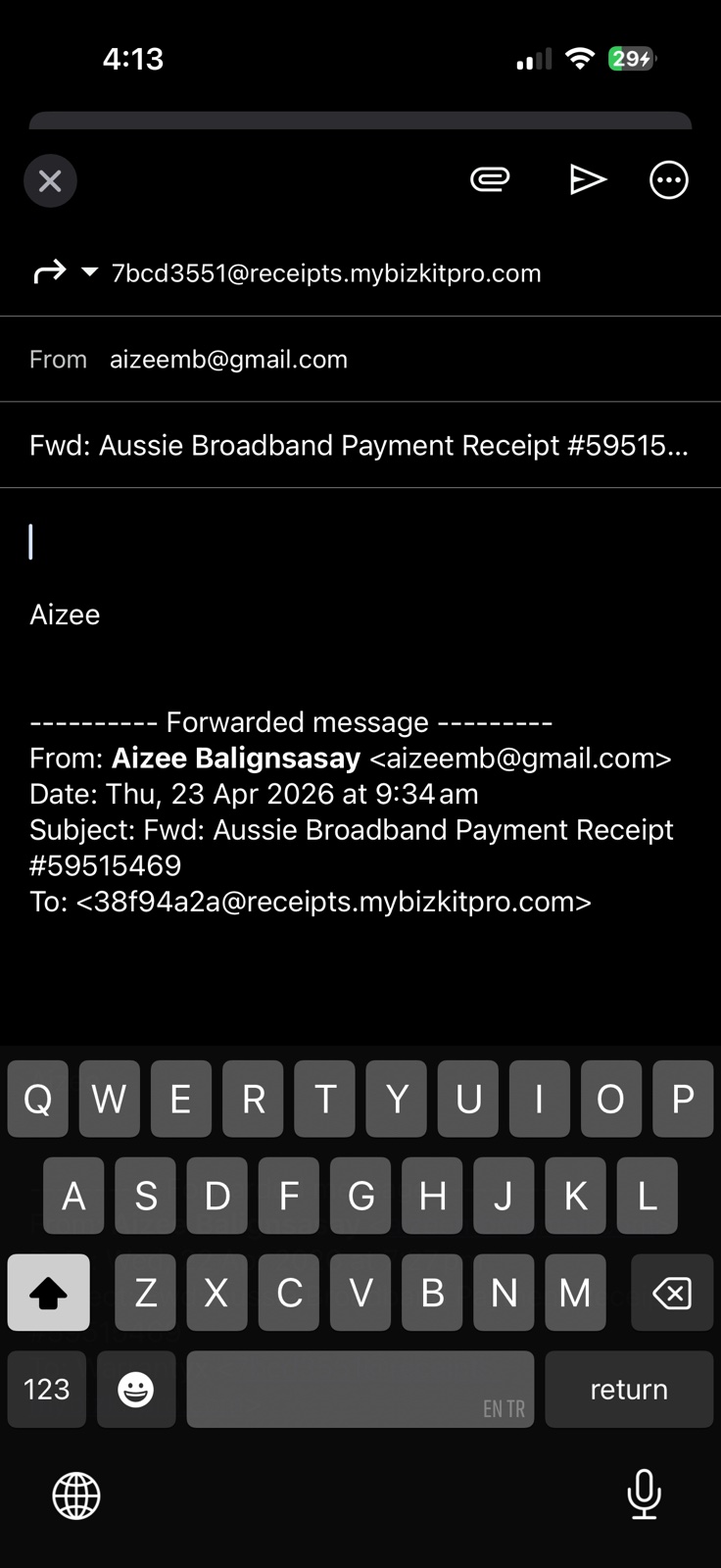
When a receipt email arrives, hit Forward and send it to your Warrantyx contact. Done.

Gmail forward screen with Warrantyx address in To field
Step 3

Get instant confirmation

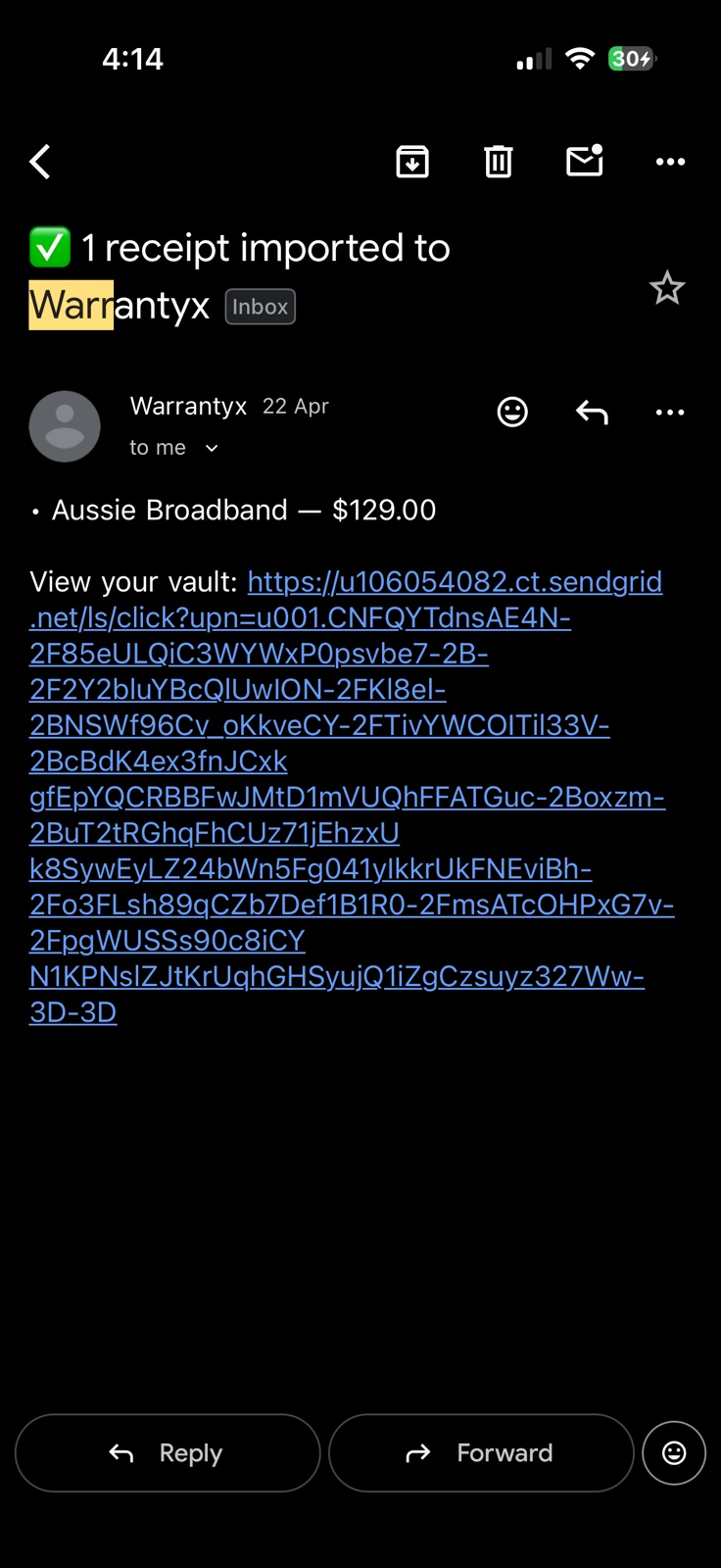
~30 seconds later you'll get a "1 receipt imported" email and the receipt appears in your vault.

Confirmation email - 1 receipt imported to Warrantyx
Tip — first time only: The first confirmation email may land in Spam/Junk. Mark it as Not Spam and all future ones go straight to your inbox. Available on the Core and Pro plans.
5

Plans & boost packs

Free includes 5 scans per month. Upgrade for more, or top up any time with a one-time boost pack.

Plans

Free, Core, or Pro

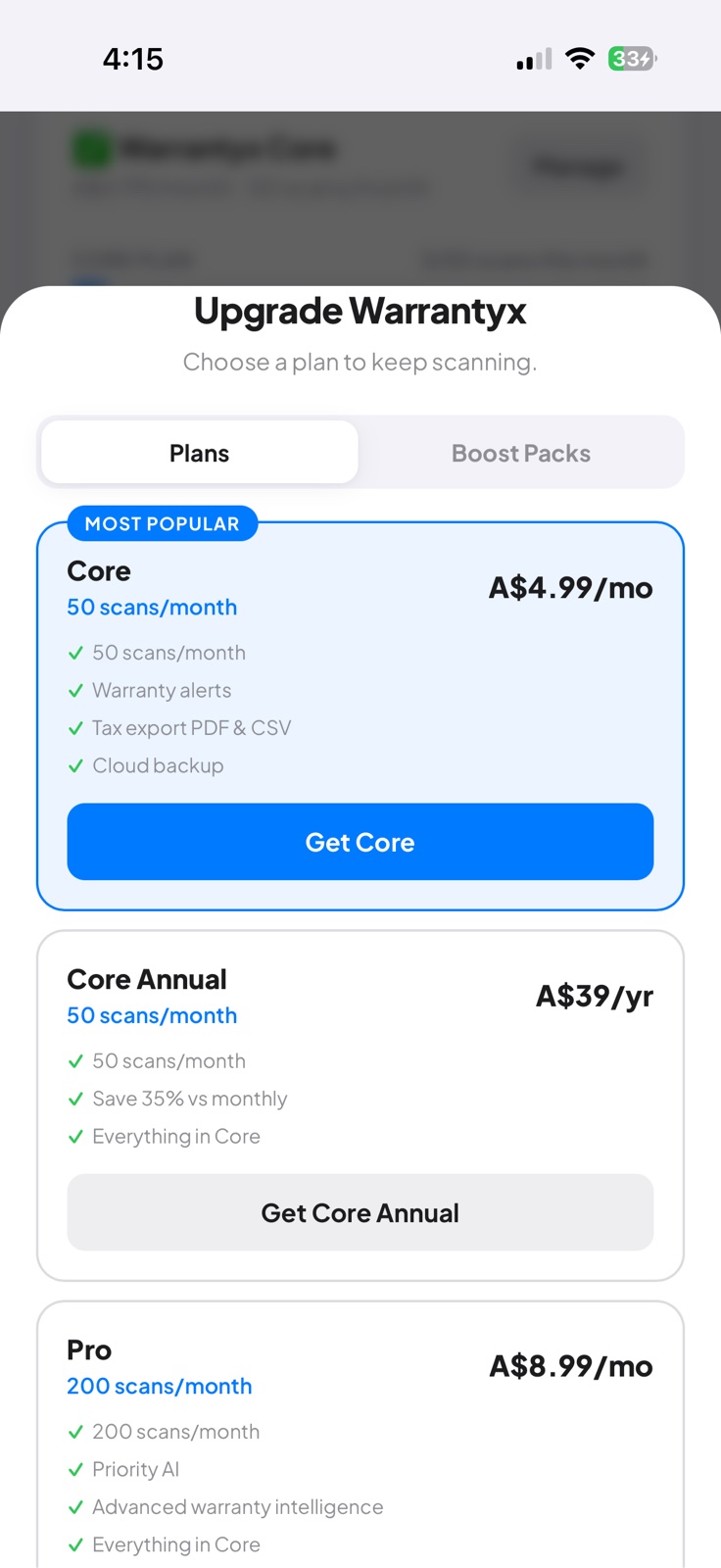
Free for 5 scans/mo. Core $4.99/mo for 50 scans + tax exports + email forwarding. Pro $8.99/mo for 200 scans + priority AI.

Plan picker screen showing Core and Pro tiers
Top-ups

Need more scans this month?

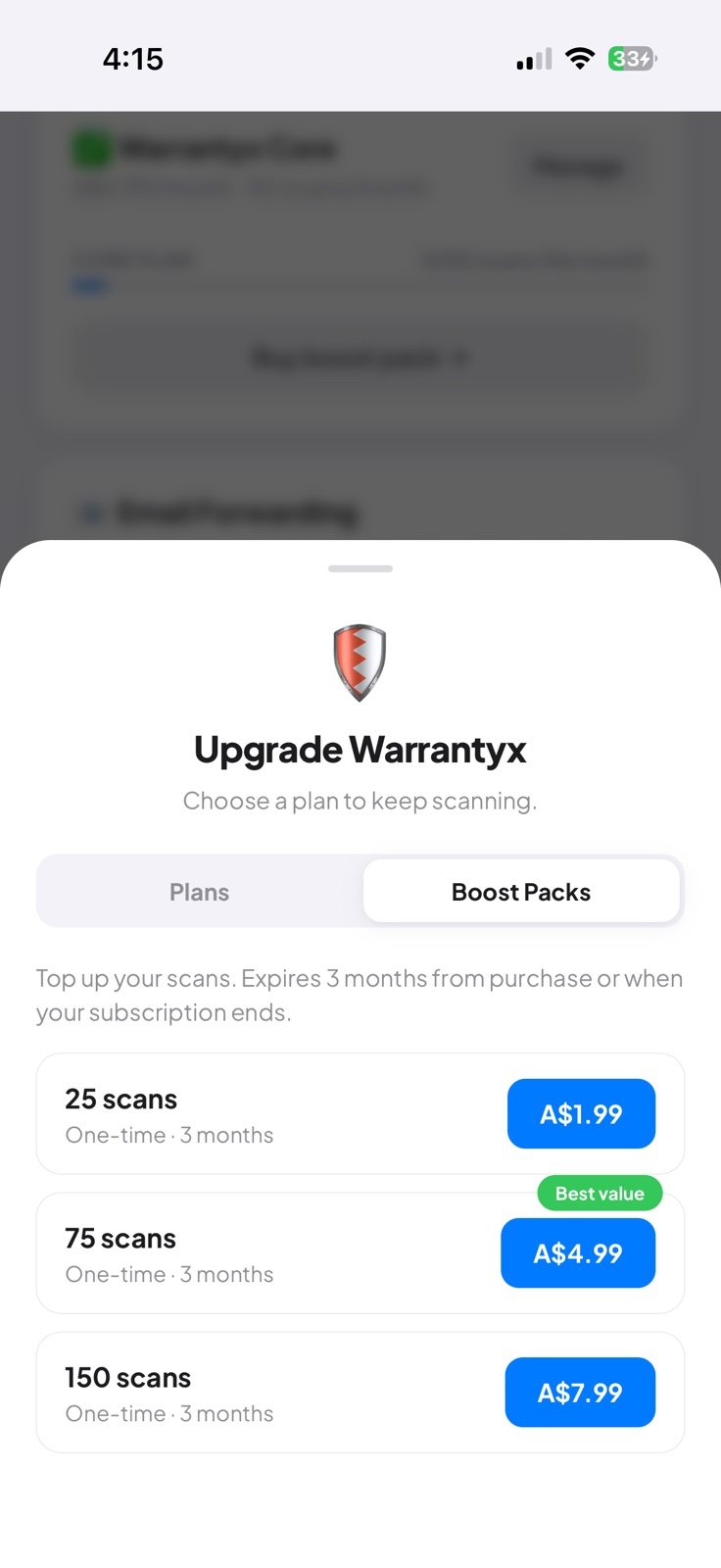
Buy a one-time boost pack: 25, 75, or 150 extra scans. Stays valid for 3 months — no subscription change.

Boost pack options 25, 75, 150 scans
Tip: Annual Core ($39/yr) saves 35% vs paying monthly. Same 50 scans/month, just billed once a year.